
How to Switch Accounting Software in the UK Without Losing Your Data (2026 Checklist)
How to Switch Accounting Software in the UK Without Losing Your Data (2026 Checklist)
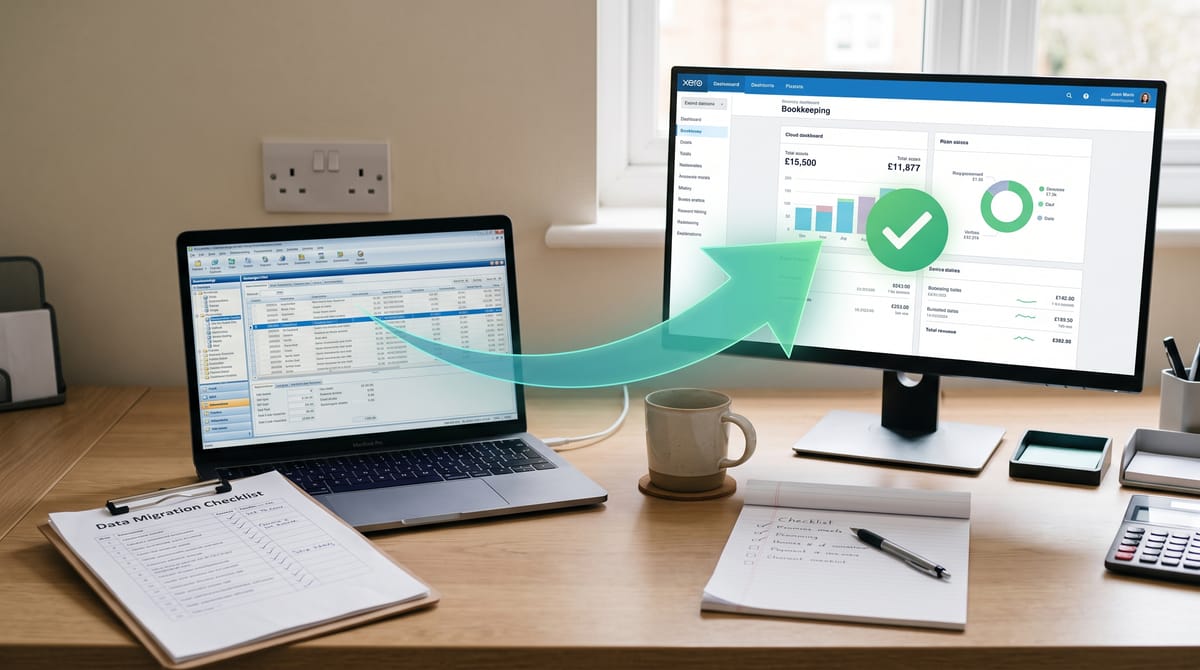
Switching accounting software feels riskier than it probably is. The fear of missing transactions, broken VAT records or a compliance gap keeps a lot of UK sole traders and small business owners stuck on platforms that no longer fit. This guide cuts through that. Whether you are moving from Sage to Xero, QuickBooks to FreeAgent, or anything in between, here is a practical checklist built for the UK in 2026 — including what MTD means for your switch and the HMRC record-keeping rules that apply throughout.
Most straightforward migrations take between two hours and five working days, depending on how much historical data you want to bring across. The process is not complicated. It just requires doing things in the right order.
Your new platform's receipt capture is the first thing to sort on day one
When is the right time to switch?
Timing matters more than most guides admit. The worst moments to migrate:
- During a VAT quarter — if your VAT period straddles the migration date, you risk gaps or duplicate entries that take time to unpick. Run any outstanding VAT returns before you move.
- At year-end — payroll, accounts and SA filings create enough pressure. A migration on top compounds the risk.
- During your busiest trading period — every hour you spend on a migration is an hour away from client work.
The safest moment is shortly after closing a VAT quarter, with at least six weeks before the next one. If you are on MTD ITSA, avoid switching in the two weeks before a quarterly update deadline (7 August, 7 November, 7 February, 7 May).
There is no restriction on switching mid-year. HMRC holds your previously submitted MTD quarterly updates on your Government Gateway account — they do not disappear when you cancel your old software. What you must do is export your year-to-date figures before you cancel, and enter opening balances in the new system to continue from where you left off.
Before you touch anything: the pre-migration checklist
Run through this before you log into any migration tool or new platform.
1. Define what you actually want from the new software
Write down the two or three things your current software does not do, and the two or three things it does well. This prevents switching from one set of frustrations to another. If MTD ITSA compliance, bank feed quality or price are the drivers, say so explicitly — it narrows your shortlist considerably. Our guide to the best accounting software for UK sole traders covers pricing, features and MTD status for every major platform side by side.
2. Check your new software is HMRC-compatible before committing
If you are MTD ITSA-mandated (sole traders and landlords with income over £50,000 from 6 April 2026), your new software must appear on HMRC's approved list for MTD for Income Tax — not just MTD for VAT. These are separate lists, and not every VAT-compatible platform is ITSA-compatible. Check the full HMRC-approved MTD ITSA software list before you sign anything.
3. Clean up your existing data before exporting
Migrating messy data produces a messy new system. Before you export anything: reconcile all bank accounts, close off inactive customers and suppliers, correct known categorisation errors and archive any records you do not need to carry forward. This step is consistently skipped and consistently regretted.
4. Save your reports
Export and save these as PDFs before you begin:
- Trial Balance (at the migration date)
- Profit and Loss (current year to migration date)
- Balance Sheet
- VAT summary (for current and previous periods)
- Outstanding debtors and creditors list
- Bank statements and reconciliation reports
These are your audit trail. HMRC can request records from previous years, and you are obligated to produce them whether or not your old software is still running. Sole traders must keep records for at least five years after the 31 January Self Assessment deadline for the relevant tax year. Limited companies must retain records for at least six years from the end of the last financial year they relate to.
5. Back up your full data file
Most platforms allow a full data export. Do this regardless of whether you plan to use it — it is your safety net if anything goes wrong post-migration.
What data can you actually migrate?
This varies by platform and by which migration method you use, but most services transfer:
- Chart of accounts
- Customer and supplier contact records
- Outstanding invoices and bills
- Opening balances
- Historical transactions (typically up to two years, sometimes more)
- Items list / products
What typically does not migrate cleanly:
- VAT filing history — your VAT records transfer as line items, not as recognised HMRC filings. You will need to set up VAT in the new system manually and reconcile your first return by hand.
- Payroll history — P60s, payslips and payroll journals need to be exported separately and archived. Payroll data does not move across accounting platforms.
- Custom reports and templates — rebuild these in the new system.
- Bank feed connections — you will need to reconnect your bank accounts to the new platform. Most UK current accounts connect via Open Banking, which takes around five minutes.
- Multi-currency historical data — usually converted to home currency only.
Migration tools: what is available in the UK
Moving to QuickBooks Online: Dataswitcher
QuickBooks partners with Dataswitcher for migrations from Sage 50 and Xero. It transfers chart of accounts, contact records, outstanding balances, items list and up to two years of historical transactions — currently free for migrations up to that limit. The conversion typically completes in two to four working days. Your QuickBooks account must be completely empty before starting; Dataswitcher cannot merge with existing data.
Moving to Xero
Xero does not operate a single branded migration service, but several third-party migration specialists (including SwitchMyBooks and AccountsPortability) handle Sage-to-Xero and QuickBooks-to-Xero migrations for a fee. For simpler setups, most bookkeepers manage the migration via CSV export from the old platform and manual import into Xero. If you are deciding between Xero's Ignite and Grow plans, note that Xero now restructured its pricing in September 2026 — worth checking current rates before committing.
Moving to Sage
Sage offers a migration service for customers moving from QuickBooks Online or Xero. Contact Sage support directly; the service is managed case by case rather than through a self-service tool.
Moving from spreadsheets to any MTD platform
Export your spreadsheet as CSV. Most MTD apps accept CSV imports during onboarding and walk you through mapping your columns (for example, matching your "Travel" column to "Motor expenses" in the new system). For a typical sole trader with 12 months of records, this takes around ten minutes once the export is ready. Our Sage vs Xero vs QuickBooks comparison includes import capability detail for each platform.
The migration steps in order
- Choose your go-live date — after a closed VAT quarter, at least six weeks before the next quarterly MTD deadline.
- Run the pre-migration checklist above — reconcile, clean, export reports, back up.
- Export your data — most platforms allow CSV export of transactions, contacts, chart of accounts and balances. Check what is actually included; some platforms provide only summary balances, not full transaction detail.
- Set up your new platform — configure VAT settings, chart of accounts, and any currency or department settings before importing data. Getting these right at setup prevents corrections later.
- Enter opening balances — these are your income and expenses from the start of the current tax year to the migration date. Enter them before you connect a bank feed.
- Run a test import — most platforms offer a sandbox or trial environment. Use it. Check that your total income and expense figures match your exported reports before committing.
- Connect your bank feed — set the bank feed start date to your migration date, not earlier. Starting earlier duplicates transactions you have already entered manually.
- Run both systems in parallel for at least one reporting period — do not cancel your old software the moment the migration completes. Compare figures across one full quarter in both systems before closing the old account.
- Set up receipt capture on the new platform — Dext connects directly to Xero, QuickBooks and Sage, and keeps your receipt capture workflow uninterrupted during the switch. Receipt Bot is a solid alternative at a lower price point if you are moving to a more budget-conscious stack. Our guide to setting up Dext with Xero covers the integration step by step.
- Cancel your old subscription after the first successful quarterly submission through the new platform — not before. Most platforms give you a 30 to 90-day export window after cancellation, but do not rely on it.
UK GDPR: the part most guides skip
Your accounting software holds personal data: customer names, addresses, purchase histories, supplier payment details. Moving this data to a new platform is a data transfer under UK GDPR. Before you migrate:
- Confirm your new provider has adequate data protection measures and a published privacy policy.
- If you are using a third-party migration service (Dataswitcher, SwitchMyBooks or similar), verify they are acting as a data processor under a formal data processing agreement.
- Document the transfer in your records. A simple note of what was transferred, when and to whom is sufficient for most small businesses.
This is not an obstacle — it is a ten-minute task that most migration guides quietly omit.
How long does it take?
For a sole trader with clean data and a single income source: one to three hours on the day, plus two to four weeks of parallel running before fully decommissioning the old system.
For a small limited company with multiple integrations and two-plus years of history to migrate: budget two to four weeks for the migration itself, plus a month of parallel running.
The longest part of any migration is usually not the technical transfer — it is finding old Government Gateway login details, sorting out bank feed reconnections, or rebuilding VAT settings. Allow time for that.
Common mistakes that cause problems
- Cancelling the old subscription before the first successful MTD quarterly submission through the new platform.
- Setting the bank feed start date too early, creating duplicate transactions.
- Skipping the data cleanup step and migrating known errors into the new system.
- Switching during a VAT period without closing the old VAT return first.
- Not downloading a full data backup before starting. If the migration goes wrong, you want the original data intact.
- Assuming VAT settings transfer automatically. They do not. Configure VAT in the new platform manually and reconcile your first return by hand.
Related Reading
- Sage vs Xero vs QuickBooks: Which UK Accounting Software Wins in 2026?
- How to Set Up Dext and Xero Together: A Step-by-Step UK Guide (2026)
- MTD for Income Tax Is Live: Which Software Is HMRC-Approved? (2026 Guide)
Affiliate disclosure: Some links in this article are affiliate links. If you sign up through them, we may earn a commission at no extra cost to you. We only recommend tools we've genuinely assessed.