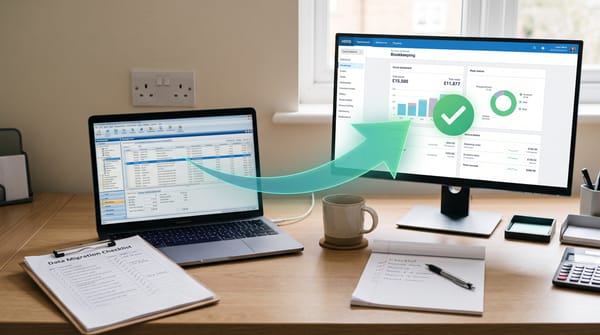
How to Set Up Dext and Xero Together: A Step-by-Step UK Guide (2026)

Most bookkeeping errors don't happen in the ledger — they happen at the point of capture, when a receipt goes missing or a client photographs something illegible three months later. Connecting Dext Prepare to Xero closes that gap by digitising source documents the moment they land, before anyone has to key a figure manually. This guide walks through the full setup process, the daily workflow it produces, and the things that go wrong — honestly.
TL;DR
- Connecting Dext to Xero takes under 10 minutes and requires admin access on both platforms; the integration syncs your chart of accounts, suppliers, tax rates, and tracking categories automatically every 48 hours.
- The minimum sensible Xero plan for Dext users is Grow (£28/mo ex-VAT) — the Ignite plan's 20-invoice cap will create problems within weeks of going live.
- The integration is solid but not foolproof: AI miscoding, connection drops, and auto-pay rule risks all require active monitoring; this is a tool that assists review, not one that replaces it.
Prerequisites
Before you start, confirm the following:
- Dext account: You need an active Dext Prepare subscription. The connection feature is available on all paid plans (Starter from ~£24/mo on annual billing, Growth from ~£40/mo, Scale from ~£72/mo). Note that line item extraction is a paid add-on not included in any base plan.
- Admin access in Dext: Only users with admin-level access can connect to third-party software. If you're a team member rather than the account owner, you'll need to ask whoever set up the account.
- Xero account: Any Xero plan supports the connection, but in practice you need at minimum the Grow plan (£28/mo ex-VAT) for unlimited invoices and bills. The Ignite plan (£15/mo) caps you at 20 invoices and 10 bills per month, which is incompatible with any meaningful Dext volume.
- Xero organisation set up: Your chart of accounts, tax rates, and tracking categories should already be configured in Xero before you connect. Dext will pull whatever it finds; if your Xero is half-built, that's what Dext will work with.
- A browser session: You'll need to be logged in to both platforms in the same browser. The OAuth redirect will carry your Xero session across.
Step-by-Step: Connecting Dext to Xero
- Open Business Settings in Dext. From your Dext dashboard, select the relevant client account (or your own business), then go to Business Settings in the left navigation.
- Navigate to Connections. Inside Business Settings, select the Connections tab. You'll see a list of supported accounting integrations.
- Select Xero and click Connect. Find Xero in the list, then click Connect software. You'll need to confirm you have admin access at this point.
- Authenticate with Xero. You'll be redirected to Xero's login page. Enter your Xero credentials and click Allow access when prompted to grant Dext permission to your Xero data.
- Select your Xero organisation. If you have multiple Xero organisations, you'll be asked to choose one. If your intended organisation appears greyed out, click Continue with X organisations to proceed — this is a known quirk of the interface rather than an error.
- Click Finish. Dext will confirm the connection and begin the initial sync. This pulls your chart of accounts, suppliers, customers, tax rates, tracking categories, products and services, and payment methods from Xero. Allow a few minutes for this to complete on the first run.
- Configure your publishing settings. Go back to Business Settings → Connections → Manage → Settings. This is where you define how Dext pushes transactions to Xero: which account items default to, whether transactions publish as draft or approved bills, and whether auto-pay rules are active. Review every option here carefully before going live — see the Watch-outs section below.
What Gets Synced Automatically
On initial connection and then every 48 hours thereafter, Dext syncs the following from Xero:
- Chart of accounts
- Supplier and customer lists
- Tax rates (including custom VAT codes)
- Tracking categories
- Products and services
- Payment methods
The 48-hour automatic cycle means that if you add a new supplier or nominal code in Xero, it won't appear in Dext until the next sync. If you need it immediately, you can trigger a manual refresh from the Costs tab in Dext. This is worth building into your onboarding checklist for new clients: set up the Xero chart of accounts first, connect Dext second, and do a manual sync before processing the first batch of documents.
The Daily Workflow: Documents to Dext to Xero
Once connected, the intended flow works as follows:
- Capture. Clients submit documents via the Dext mobile app, a dedicated email inbox, or — increasingly common — WhatsApp. The mobile app is the lowest-friction option for sole traders on the move.
- AI extraction. Dext claims 99%+ data extraction accuracy for key fields (date, amount, supplier, VAT). In practice, accuracy is high for clean, typed receipts and lower for handwritten documents, photocopies, or low-resolution images.
- Auto-categorisation. Dext learns from your past coding decisions. After roughly two weeks of use, around 80% of transactions should be auto-coded to the correct nominal account. The remaining 20% will sit in a review queue requiring manual attention — and some of the 80% will still need sense-checking.
- Review queue. This is the step that can't be skipped. Open the inbox, confirm or correct the AI's categorisation, assign tracking categories, check VAT treatment, and flag anything that needs a query back to the client.
- Publish to Xero. Approved items are pushed to Xero as draft or approved bills, depending on your settings. From Xero, they appear in the awaiting-payment queue or are matched against the bank feed.
- Bank feed matching in Xero. The final reconciliation step happens inside Xero. The bank feed matches incoming transactions against the bills Dext has published, and you confirm the match.
For a practice handling 50–200 documents per client per month, a well-tuned Dext–Xero setup typically reduces processing time per document from 3–5 minutes (manual keying) to under 1 minute (review and approve). The headline time saving is real; it just takes 2–4 weeks to reach steady state.
Key Settings to Configure After Connecting
Most problems with the Dext–Xero integration stem from publishing settings that were left at defaults. After connecting, work through each of the following:
- Default account codes. Set sensible defaults for costs and sales so that uncategorised items don't land on a suspense account in Xero.
- VAT rates. Map Dext's VAT categories to the correct Xero tax rates. Particular attention to the reverse charge, exempt, and outside-the-scope treatments — these are easy to misconfigure and painful to correct across a large batch.
- Document publish status. Decide whether transactions publish as Draft or Approved bills in Xero. For new clients or new team members, draft is the safer default — it creates a second checkpoint before anything enters the books as final.
- Auto-pay rules. Dext can automatically mark bills as paid using payment rules. Read the next section before enabling this. Our recommendation: leave it off until you fully understand the implications.
- Supplier rules. Set up supplier-level coding rules for your most frequent suppliers. This is what drives the 80% auto-categorisation rate; the more rules you create, the less manual coding you do.
- Tracking categories. If your Xero setup uses tracking categories (e.g., by department or project), configure these in Dext now so they're available in the review queue.
Watch-outs and Pitfalls
This section contains the things vendors don't usually lead with. They're worth reading before you commit to a workflow.
- Auto-pay rule risk. Dext's auto-pay rules can mark supplier invoices as paid in Xero without any manual approval step. A misconfigured rule — or a rule that's correct for one supplier but applied too broadly — can result in transactions being marked paid that aren't. Check every active payment rule after setup and after any changes to supplier coding.
- AI miscoding. The AI makes plausible errors. "Amazon" gets coded to stationery even when the purchase was a client gift or a capital item. "BP" gets coded to motor fuel even when it was a service station food purchase. The review step is not optional; treat it as the core of the workflow rather than an afterthought.
- Connection drops. The OAuth connection between Dext and Xero can break, particularly after password changes, security resets, or Xero plan changes. Because the sync runs every 48 hours rather than in real time, a broken connection may go unnoticed for two days or more. Build a weekly check of the Connections page into your practice workflow.
- Admin-only access for connection. Non-admin Dext users cannot connect to or manage the Xero integration. If you operate a team where junior staff manage their own Dext accounts, this is a structural limitation to be aware of.
- Mobile app limitations. The Dext mobile app is primarily a capture tool. You cannot publish transactions to Xero from mobile — only expense transactions are an exception. All review and publishing work happens in the desktop browser interface.
- Pricing history. Dext has a documented history of removing plan tiers with relatively short notice and implementing price increases of 40–60% on existing customers. Unlimited submission plans were scrapped with minimal warning. Check the current plan structure before committing.
- Annual contract terms. Dext requires 30 days' written notice before the renewal date to cancel an annual contract. Missing this window means you're committed for another 12 months. Set a calendar reminder 60 days before renewal on day one.
MTD ITSA Compliance
Making Tax Digital for Income Tax Self Assessment (MTD ITSA) is the context in which many UK bookkeepers are evaluating this combination in 2026. Here is how the two products sit relative to the requirements:
Xero and MTD ITSA
Xero is HMRC-recognised as a compatible software solution for MTD ITSA across all subscription plans. It handles quarterly updates and the Final Declaration at the end of the tax year. This is the submission layer of the compliance stack.
Dext Prepare and MTD ITSA
Dext Prepare feeds data into Xero but is not itself the MTD submission tool. It satisfies the digital record-keeping requirement — source documents are captured digitally, extracted data is stored and auditable, and the journey from document to ledger entry is fully digital with no manual re-keying. That is precisely what HMRC's digital links requirement demands.
The Combined Picture
For sole traders and landlords within MTD ITSA mandation, using Dext Prepare plus Xero satisfies both the digital record-keeping requirement and the quarterly submission requirement. The chain from paper receipt to HMRC submission is entirely digital, with no manual transcription steps.
Alternatives: How Dext Compares
| Tool | Price (est.) | Xero App Rating | Line Items | Unlimited Users |
|---|---|---|---|---|
| Dext Prepare | From ~£24/mo (annual) | 4.8★ | Add-on cost | No |
| Hubdoc | Free with Xero | 3.3★ | No | Yes |
| Receipt Bot | From ~£7/mo | Not listed | Yes | Yes |
| Datamolino | From £17/mo | 4.9★ | Yes (all plans) | Yes |
Hubdoc is bundled free with every Xero plan. Its 3.3-star Xero App Store rating is a fair reflection of reality: it functions for clients submitting fewer than 20 documents per month but struggles with higher volumes and has limited automation. For any client with meaningful transaction volumes, Hubdoc is a stopgap rather than a solution.
Receipt Bot is substantially cheaper than Dext and includes line items on standard plans. Worth serious consideration for price-sensitive practices or clients with high document volumes.
Datamolino holds the highest Xero App Store rating at 4.9 stars and includes line items across all plans at a lower base price than Dext. Less well-known in the UK market but warrants evaluation where line item accuracy is a priority.
Combined Cost Breakdown
| Component | Monthly Billing | Annual Billing |
|---|---|---|
| Dext Starter | ~£30/mo | ~£24/mo |
| Dext Growth | ~£50/mo | ~£40/mo |
| Xero Grow (minimum recommended) | £28/mo | £28/mo |
| Xero Comprehensive | £55/mo | £55 |
| Entry-level combined (Dext Starter + Xero Grow, annual billing) | ~£52/mo | ~£52/mo |
Dext pricing is estimated from third-party sources as Dext does not publish current rates publicly. If line item extraction is required, add the Dext line item add-on cost on top of these figures.
Frequently Asked Questions
Do I need a separate Dext account for each Xero organisation?
Yes. Each Dext business connects to one Xero organisation. If you manage multiple clients in separate Xero organisations, each client needs their own Dext business within your practice account. Practice-level Dext plans are priced per number of active businesses.
Can my client use Dext on their phone without seeing the Xero integration?
Yes. Clients can be given restricted access to Dext that limits them to submitting documents only. They don't need to see the Xero connection, publishing settings, or review queue. This is the standard setup for most bookkeeper–client arrangements.
What happens if I change my Xero plan? Will the connection break?
Changing your Xero plan can interrupt the OAuth connection, particularly if the change involves account-level modifications. After any Xero plan change, go to Dext Business Settings → Connections and confirm the connection is still active. Re-authenticating takes a couple of minutes and is preferable to discovering a silent failure days later.
Does Dext work with Xero for MTD VAT as well as MTD ITSA?
Dext Prepare feeds transaction data into Xero and does not interact with HMRC directly. For MTD VAT, Xero handles the submission. Dext ensures that the underlying records are digitally captured — satisfying HMRC's digital links requirement — but the VAT return itself is filed through Xero.
Are there any UK-specific VAT settings I need to configure in Dext?
Yes. When you first connect, verify that Dext's VAT rate mappings align with your Xero tax rate codes — particularly for reduced rate (5%), exempt, and zero-rated supplies. For clients with complex VAT positions (reverse charge, partial exemption, international supplies), review each tax code mapping individually rather than relying on defaults.
Related Reading
Affiliate disclosure: Some links in this article are affiliate links. If you sign up through them, we may earn a commission at no extra cost to you. We only recommend tools we've genuinely assessed.
Last updated: September 2026
Before setting up the integration, it's worth understanding whether you need Dext at all — our Dext vs Xero UK 2026 comparison covers what each tool does, when Xero's built-in Hubdoc is sufficient, and worked pricing examples for different practice sizes.