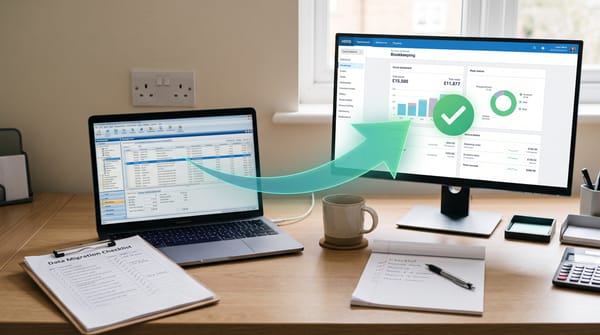
How to Switch Accounting Software in the UK Without Losing Your Data (2026 Checklist)

How to Switch Accounting Software in the UK Without Losing Your Data (2026 Checklist)
More UK sole traders and small businesses are switching accounting software right now than at any point in the past decade. QuickBooks raised its UK prices by 47% earlier this year. Xero restructured its plans and pushed prices up in September 2026. Sage 50 desktop users are being nudged — hard — towards cloud alternatives as MTD for Income Tax mandates tighten. If you have been thinking about switching, you are not alone. The question is how to do it without losing three years of transaction history, botching a VAT return, or spending a weekend untangling mismatched account codes.
This guide gives you a practical, sequenced checklist for switching accounting software in the UK, with specific guidance on data migration, HMRC compliance, choosing a cut-off date, and the integrations you will need to set up on the other side. If you are moving from Sage 50 to Xero — currently the most common migration in the UK — this covers that route in detail.
A software switch is the ideal time to fix your receipt capture too. Dext connects to Xero, QuickBooks and Sage — and handles mileage, bills and invoices in one place.
Why so many UK businesses are switching right now
The trigger is usually one of three things: cost, compliance, or capability. The QuickBooks price rise pushed thousands of small businesses into reviewing alternatives. MTD for Income Tax — mandatory for sole traders and landlords with income over £50,000 from 6 April 2026, and expanding to the £30,000 cohort from April 2027 — means older software that cannot submit quarterly updates to HMRC is no longer viable. And Sage 50, for all its reliability, is a desktop product: it needs the office machine on, does not have live bank feeds by default, and requires bridging software for MTD VAT submissions.
If you are still on Sage, Xero or QuickBooks and re-evaluating your options, the switching cost is lower than it has ever been — but only if you do it in the right order.
Before you start: the preparation checklist
This is the phase most people underestimate. A clean migration starts in your existing system, not your new one.
- Reconcile everything. Every bank account, the VAT control account, PAYE, and your customer and supplier ledgers should tie exactly to your statements and returns. Any discrepancy you carry forward becomes a discrepancy in the new system.
- Clear suspense accounts. Any unexplained posting sitting in a suspense or clearing account needs to be resolved before export. It will not resolve itself during migration.
- Write off uncollectable debts. Old debtors you know you will never collect inflate your balance sheet. Clear them now rather than migrating them as phantom assets.
- File any outstanding VAT returns. Do not start a migration with an open VAT quarter. Get the last return filed and marked paid in your old system before you touch anything else.
- Back up your existing data. Create a full backup — a complete Sage backup file, a QuickBooks QBB file, or equivalent — and store it somewhere separate from the machine you use daily. HMRC can request records going back six years (limited companies) or five years (sole traders), and your obligation does not disappear when you decommission the old software.
- Decide how much history to migrate. This is a genuine choice. Migrating all historical data gives you continuity and comparative year-on-year reporting. Starting fresh with opening balances only is simpler, faster, and lower risk — particularly if your historical data has quality issues. Many UK businesses opt for a cut-off date and keep the old system accessible (read-only or as a PDF export) for historical lookups.
Choosing the right cut-off date
The single most important decision in your migration is when to make the switch. The cleanest option is the first day of a new financial year: you convert your closing balances, archive the old system as your reference for that period, and start fresh in the new software with no part-year reconciliation problem. For most UK businesses, that means 1 January, 1 April, or 6 April depending on your accounting reference date.
The second-best option is a VAT period boundary. If your financial year does not suit the timing, at minimum align the switch date with the end of a VAT quarter. The cost of switching mid-quarter — accountant time to reconcile two ledgers for the same VAT period — typically exceeds any urgency savings.
What to avoid: switching mid-financial-year and mid-VAT-quarter simultaneously. The reconciliation work alone can take longer than the migration itself.
The migration routes: which one is right for you
Movemybooks (Sage 50 to Xero — free)
If you are migrating from Sage 50 to Xero, Movemybooks is the most practical starting point. Xero covers the cost of a Convert 24 migration (up to 24 months of transaction history, saving around £180). Movemybooks takes your Sage backup file, maps it to Xero's chart of accounts structure, and imports it. The conversion itself typically runs in two to three hours once your Sage data is prepared. The total elapsed time — including data audit, any corrections, and post-migration reconciliation — is usually three to five working days for a simple SME.
The trade-off: Movemybooks imports detailed transaction history, which can bring in several years of journals you might prefer not to see in your day-to-day Xero view. For cleaner output, a manual CSV migration gives you more control at the cost of a day or two of additional bookkeeper time.
Manual CSV import
Most accounting platforms allow CSV import of: chart of accounts, contacts (customers and suppliers), opening trial balance, open invoices and bills, and bank transactions. The order matters — import in this sequence, because each subsequent file depends on the previous one existing in the target system. The opening trial balance should be posted as a manual journal dated the day before your conversion date.
Manual migration is slower but gives you explicit control over exactly what goes in. It is the right choice if your data has known quality issues, your chart of accounts needs restructuring, or you are starting with a clean date rather than carrying forward transaction history.
Professional migration service
For businesses with multiple years of history, complex VAT arrangements (flat rate, partial exemption, annual accounting), CIS deductions, multi-currency, or high transaction volumes, a migration specialist is worth the cost. Typical UK costs in 2026:
| Scope | Estimated cost |
|---|---|
| Opening balances only | £300–£800 |
| Basic migration (1 year history) | £800–£1,500 |
| Standard migration (2–3 years history) | £1,500–£3,000 |
| Full historical migration | £3,000–£5,000 |
| Complex enterprise migration | £5,000+ |
These figures come from migration specialists operating in the UK market in 2026. Get quotes from at least two providers and ask specifically what validation and reconciliation is included — post-migration support (typically 30 days) should be standard.
HMRC compliance and GDPR during migration
Two regulatory areas need specific attention beyond the technical data transfer.
HMRC record-keeping obligations. Switching software does not reset your retention clock. Limited companies must keep accounting records for at least six years from the end of the last financial year they relate to. Sole traders must retain records for at least five years after the 31 January Self Assessment deadline for the relevant tax year. Your old system — or a complete export from it — must remain accessible throughout.
MTD compliance. Your new software must be HMRC-recognised for Making Tax Digital. Being on the MTD VAT list does not automatically mean a product is on the MTD Income Tax list — verify both if you are mandated or voluntarily enrolled for MTD ITSA. Configure your MTD connection in the new software before your first submission is due.
UK GDPR. Financial records contain personal data — customer names, addresses, payment histories. Any transfer to a new system is a data processing activity under UK GDPR. Ensure your new provider has adequate data protection measures, and if you are using a third-party migration service, confirm they are operating as a data processor under a formal agreement.
Post-migration verification checklist
Do not go live without completing these steps.
- Reconcile opening balances. Every account in the new system should match the closing balance from the old one. Check bank, VAT, PAYE, debtors, creditors and fixed assets.
- Run comparative reports. Profit and loss, balance sheet, aged debtors and creditors — run them in both systems for the same period and confirm they agree.
- Sample-check transactions. Pick 10–15 invoices, payments and journal entries at random and verify they appear correctly in the new system.
- Set up live bank feeds. Connect your bank feed and confirm it is pulling correctly from your conversion date forward — not from an earlier date.
- Configure VAT settings. VAT scheme, registration number, filing frequency and MTD connection. Test with a dummy return in the new system before your first live submission.
- Run both systems in parallel for one reporting cycle. This is the most reliable safety net. Do not decommission the old software until you have at least one clean VAT quarter and one bank reconciliation completed in the new system.
Setting up integrations after the switch
A software switch is the right time to build your bookkeeping stack correctly from the outset, not just to replicate what you had before.
Receipt capture. If you are moving to Xero or QuickBooks and you are not already using a dedicated capture tool, add one before you start entering transactions in the new system. Dext connects to both platforms and handles receipts, bills, invoices and mileage in one workflow — which is far cleaner than starting with manual photo uploads and trying to retrofit a capture process later. For a step-by-step on the Xero side, see our guide to setting up Dext and Xero together.
Payroll. If you use payroll within your accounting software, ensure the payroll module is configured in the new system before your first pay run. If payroll data is being migrated separately, verify P11D and year-to-date PAYE figures match before processing any payments.
Other integrations. Reconnect CRM, e-commerce or practice management tools one at a time and test each connection before moving to the next. Check that data flows correctly in both directions and that no transactions are duplicated at the join points.
Choosing your new software: a quick guide
If you have not settled on a destination, the choice depends on your situation. Xero Ignite (£18/month) suits most UK sole traders and sole directors with straightforward VAT. Xero Grow (£39/month) adds quotes, project tracking and multi-currency — necessary if you invoice regularly or work internationally. For a full comparison of the current plan landscape, see our Xero vs Sage head-to-head.
The right pick for different situations
- Sole trader switching from Sage desktop: Xero Ignite via Movemybooks. Free migration, MTD ITSA compliant, live bank feeds from day one.
- Small limited company on QuickBooks: Xero Grow covers the same features for most businesses at a comparable price post-QuickBooks price rise. Or Zoho Books Standard (£10/month) if budget is the priority.
- Landlord managing property income: FreeAgent (free for NatWest/RBS/Mettle account holders) or Zoho Books Free tier — both support MTD ITSA property income reporting.
- CIS subcontractor: Xero Grow or QuickBooks Sole Trader (MTD) — both handle CIS deductions natively. Verify CIS settings before your first payment run in the new system.
- Practice migrating a client portfolio: Do one client first as a test. Choose a client with a clean, simple dataset and a year-end cut-off coming up. Validate the process before rolling out to the rest.
FAQ
How long does switching accounting software take in the UK?
For a small business with clean data and a simple chart of accounts, a Sage 50 to Xero migration using Movemybooks typically takes three to five working days end-to-end (including data preparation, the conversion itself, and post-migration reconciliation). A manual CSV migration takes one to two weeks. A professional migration for a more complex business takes two to four weeks. Add time for parallel running — at least one reporting cycle before you decommission the old system.
Do I lose my VAT history when I switch?
No. VAT returns already filed stay in your old system for reference — and must remain accessible for HMRC audit purposes. Your new software handles all submissions from your conversion date forward. Ensure the last VAT return before your cut-off is filed and marked paid in the old system before migration starts.
Is Movemybooks free for Sage 50 to Xero?
Yes. Xero covers the cost of a Convert 24 migration (up to 24 months of data) via Movemybooks, saving around £180 + VAT. Additional historical years cost approximately £60 + VAT per year if you want to bring in more than 24 months.
What happens to my old software after the switch?
Keep it. Do not cancel the subscription until you are certain the migration is complete and verified, and ideally until after your first successful VAT submission in the new system. After that, you can cancel the subscription but should keep a read-only backup or PDF export of the historical data for your HMRC retention period.
Does switching software affect my HMRC MTD status?
Only if you move to a system that is not on the relevant HMRC recognised software list. Before you decommission the old software, confirm your new platform is on the MTD ITSA list (not just the MTD VAT list), and set up your new MTD authorisation with HMRC via the Government Gateway. Your obligation to submit quarterly updates does not pause during the migration.
Related Reading
- Sage vs Xero vs QuickBooks: Which UK Accounting Software Wins in 2026?
- Best Xero Alternatives UK 2026: What to Switch to Before the September Price Rise
- Xero vs Sage for UK Small Businesses (2026): Full Head-to-Head Comparison
Affiliate disclosure: Some links in this article are affiliate links. If you sign up through them, we may earn a commission at no extra cost to you. We only recommend tools we've genuinely assessed.